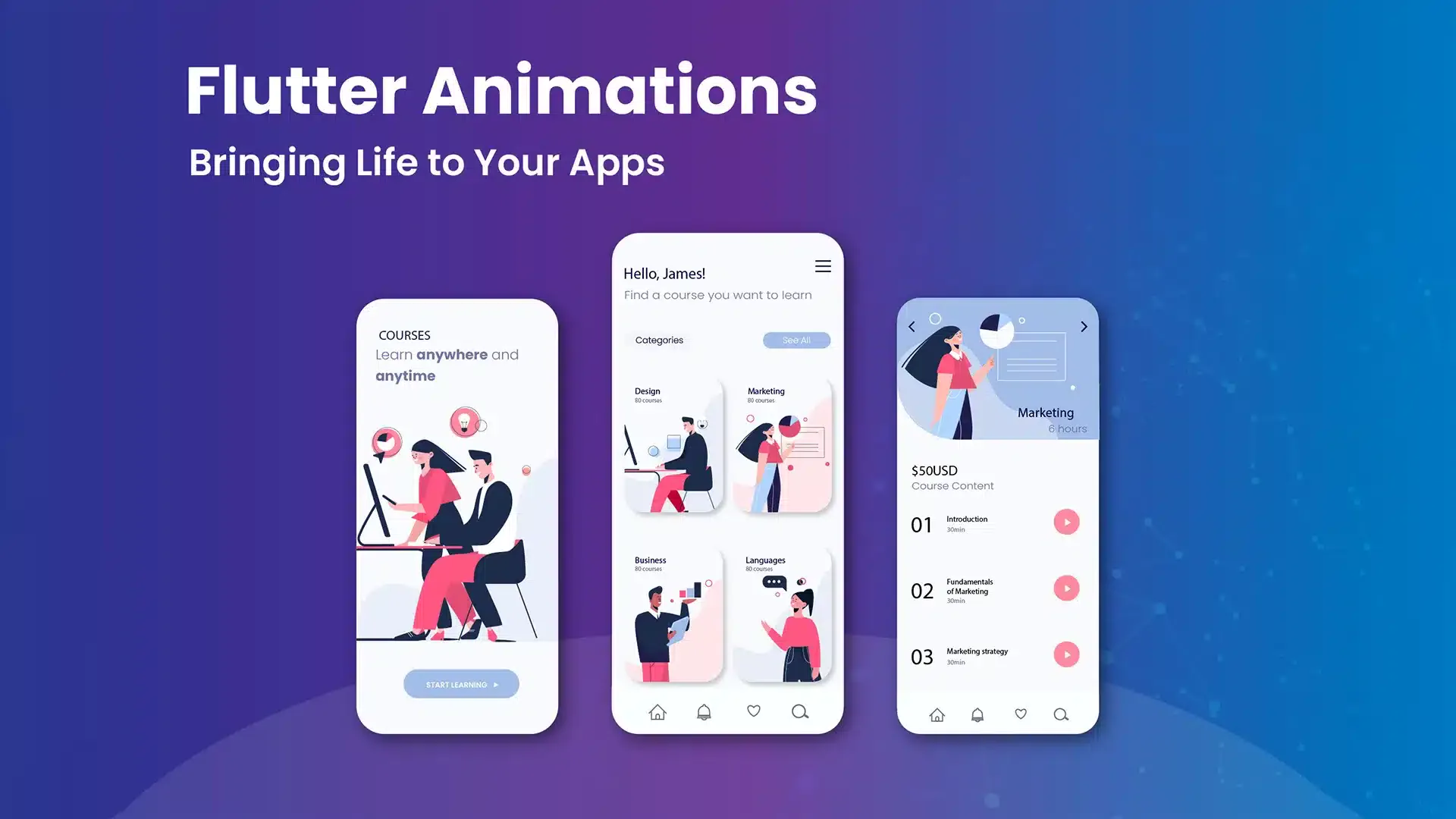
Creating stunning UI animations in Flutter not only improves user engagement but also adds a layer of professionalism and polish to your application. In this in-depth guide, we’ll explore how to use Flutter’s powerful animation framework to build visually compelling interfaces. From basic motion effects to advanced animated transitions, you’ll learn practical techniques to make your app stand out in the crowded marketplace.
Understanding Animations in Flutter Applications
Before diving into advanced animation techniques, it’s important to understand what animations mean in the context of Flutter development. In simple terms, animations in Flutter are visual transitions or motion effects that respond to user interactions or state changes within your app. These can include:
- Button and icon transitions
- Page and screen navigation animations
- Loading indicators and progress bars
- Animated containers and layout shifts
- Gesture-driven animations (e.g., swipes, drags)
Flutter provides a powerful and flexible animation framework, offering everything from implicit animations like AnimatedContainer to explicit animations using AnimationController and Tween. Choosing the right animation technique depends on your app’s design goals, user experience expectations, and performance needs.
Flutter Animation Basics: Reactive and Dynamic UI
Creating dynamic and reactive UI animations in Flutter involves more than just adding motion—it’s about structuring your animations in a way that responds seamlessly to user interactions and app state changes. Flutter’s animation system is built to support this kind of responsiveness using controllers, tweens, and animated widgets.
Key Concepts in Flutter Animations
- Animations: Visual changes triggered by user input or system events
- AnimationController: Controls the animation's duration and progression
- Tween: Defines the range of values for an animation
- Animated Widgets: Widgets like AnimatedContainer, AnimatedOpacity, or AnimatedPositioned that react to state changes
- Curves: Control the timing and feel of an animation (e.g., bounce, ease-in)
A typical Flutter animation workflow follows a reactive model:
- User interaction or app logic triggers animation
- AnimationController drives the change
- Tween maps values over time
- UI widgets rebuild with animated transitionss
By adopting this reactive animation structure, you can build fluid and engaging Flutter UIs that feel intuitive and alive.
Implementing a Simple Animation in Flutter
Let’s look at how you can implement a basic animation in Flutter using AnimationController and Tween. Instead of just incrementing a counter with state management, we’ll animate the value change to create a visually smooth and engaging user experience.
Animated Counter Example in Flutter:
class AnimatedCounter extends StatefulWidget {
            @override
            _AnimatedCounterState createState() => _AnimatedCounterState();
          }

          class _AnimatedCounterState extends State
              with SingleTickerProviderStateMixin {
            late AnimationController _controller;
            late Animation _animation;
            int _counter = 0;

            @override
            void initState() {
              super.initState();
              _controller = AnimationController(
                vsync: this,
                duration: Duration(milliseconds: 300),
              );
              _animation = IntTween(begin: _counter, end: _counter).animate(_controller);
            }

            void _incrementCounter() {
              setState(() {
                _counter++;
                _animation = IntTween(begin: _animation.value, end: _counter)
                    .animate(_controller);
                _controller.forward(from: 0);
              });
            }

            @override
            void dispose() {
              _controller.dispose();
              super.dispose();
            }

            @override
            Widget build(BuildContext context) {
              return Column(
                children: [
                  AnimatedBuilder(
                    animation: _animation,
                    builder: (context, child) {
                      return Text(
                        'Count: ${_animation.value}',
                        style: TextStyle(fontSize: 32),
                      );
                    },
                  ),
                  ElevatedButton(
                    onPressed: _incrementCounter,
                    child: Text("Increment"),
                  )
                ],
              );
            }
          }
Why This Matters
With this example, you're not just updating UI state—you’re making it interactive and visually engaging, a key goal in building modern mobile interfaces. By using AnimationController, Tween, and AnimatedBuilder, you gain full control over the animation process, leading to stunning UI animations in Flutter that boost both performance and user satisfaction.
Advantages of Using Flutter's Animation Framework
Flutter's built-in animation system offers several powerful advantages that help developers create stunning, fluid, and responsive UI animations with ease:
- Clear Separation of Animation Logic and UI
- Highly Customizable Motion Effects
- Smooth and Reactive User Experience
- Ideal for Complex Interfaces
Provider: Simplified State Handling for Animated Flutter UIs
Provider is a lightweight and powerful state management solution in Flutter that integrates seamlessly with the widget tree. It can be effectively used to control animated UI elements by managing animation-related state such as visibility, toggles, and transitions.
Key Concepts in Provider for UI Animations
- ChangeNotifier: Notifies listeners when animation-related state changes
- ChangeNotifierProvider: Supplies the animation controller/state to widgets
- Consumer: Rebuilds animated widgets when state updates
Implementing Flutter Animation with Providerr
Below is an example that uses Provider to manage the visibility of a widget with a fade-in/out animation:
// Animation State Model
            class AnimationModel extends ChangeNotifier {
              bool _visible = true;
              bool get isVisible => _visible;

              void toggleVisibility() {
                _visible = !_visible;
                notifyListeners();
              }
            }

            // Widget Tree
            ChangeNotifierProvider(
              create: (_) => AnimationModel(),
              child: Consumer(
                builder: (context, model, child) {
                  return Column(
                    children: [
                      AnimatedOpacity(
                        opacity: model.isVisible ? 1.0 : 0.0,
                        duration: Duration(milliseconds: 500),
                        child: Container(
                          width: 200,
                          height: 100,
                          color: Colors.blue,
                        ),
                      ),
                      ElevatedButton(
                        onPressed: () => model.toggleVisibility(),
                        child: Text('Toggle Animation'),
                      ),
                    ],
                  );
                },
              ),
            )
Advantages of Using Provider for Flutter Animations
- Minimal Boilerplate
- LSeamless Widget Integration
- Perfect for Interactive UI States
- Ideal for Small to Medium Projects
Riverpod: Modern State Control for Flutter UI Animations
Riverpod is a powerful state management solution built as an evolution of Provider. With compile-time safety, enhanced performance, and flexibility, Riverpod is an ideal choice for managing complex Flutter UI animations and responsive interfaces."
Key Riverpod Concepts for Animation Management
- Provider: A stateless container for animation-related values
- ConsumerWidget:Rebuilds animated UI elements by watching provider states
- StateNotifier: Manages dynamic animation state transitions
Implementing Flutter UI Animations Using Riverpod
Let’s explore how Riverpod can be used to animate UI elements such as opacity or movement.
// Animation State Model
            class AnimationState {
              final bool isVisible;
              AnimationState(this.isVisible);
            }

            // Animation State Notifier
            class AnimationNotifier extends StateNotifier {
              AnimationNotifier() : super(AnimationState(true));

              void toggleVisibility() {
                state = AnimationState(!state.isVisible);
              }
            }

            // Provider Definition
            final animationProvider = StateNotifierProvider(
              (ref) => AnimationNotifier(),
            );

            // Consumer Widget Example
            class AnimatedBox extends ConsumerWidget {
              @override
              Widget build(BuildContext context, WidgetRef ref) {
                final animationState = ref.watch(animationProvider);

                return Column(
                  children: [
                    AnimatedOpacity(
                      opacity: animationState.isVisible ? 1.0 : 0.0,
                      duration: Duration(milliseconds: 600),
                      child: Container(
                        width: 200,
                        height: 100,
                        color: Colors.deepPurple,
                      ),
                    ),
                    ElevatedButton(
                      onPressed: () => ref.read(animationProvider.notifier).toggleVisibility(),
                      child: Text('Toggle Animation'),
                    ),
                  ],
                );
              }
            }
Advantages of Using Riverpod for Flutter UI Animations
- Type-Safe & Error-Free Animations
- No BuildContext Required
- Advanced Support for Async Animations
- Test-Friendly Animated Interfaces
Comparing Flutter Animation Techniques
Each Flutter animation technique offers unique strengths for creating engaging and visually appealing UI experiences:
| Feature | Implicit Animations | AnimatedBuilder | Rive |
|---|---|---|---|
| Ease of Use | Very Easy | Moderate | Moderate |
| Customization | Limited | High | Very High |
| Performance | Good | Excellent | Excellent |
| Best For | Simple UI Transitions | Fine-Grained Control | Complex Vector Animations |
| Learning Curve | Gentle | Moderate | Steep |
| Integration Effort | Low | Medium | Requires External Tool |
Best Practices for Creating Stunning UI Animations in Flutter
Creating smooth and engaging animations can elevate the user experience of your Flutter app. Follow these best practices to craft stunning UI animations:
1. Start Simple, Scale Gradually
Begin with basic animations using built-in widgets like AnimatedContainer and AnimatedOpacity. Once comfortable, progress to more complex animations with AnimationController and Tween.
2. Use Implicit and Explicit Animations Appropriately
Use implicit animations for simple transitions, such as fading or resizing. For more control over timing, curves, and sequences, use explicit animations to fine-tune user interactions.
3. Optimize Performance
Avoid excessive rebuilds and unnecessary repaints. Wrap animated widgets in RepaintBoundary when needed, and always test animations on real devices to check for dropped frames.
4. Follow Material Design Guidelines
Adhere to Flutter's Material motion system for a cohesive experience. Use widgets like Hero for page transitions and AnimatedSwitcher for replacing UI elements elegantly.
5. Leverage Animation Libraries
Use powerful animation libraries like flutter_animate, rive, or lottie for advanced and visually rich animations. These tools help you implement complex designs with less code.
Conclusion: Mastering UI Animations in Flutter
Animations are a vital aspect of modern UI design, enhancing usability and making apps feel fluid and responsive. Flutter provides a rich set of tools and widgets to create everything from simple transitions to complex motion effects.
By following best practices—starting simple, optimizing performance, and using the right animation tools—you can craft visually compelling and user-friendly Flutter applications. Whether you're animating buttons or building cinematic transitions, Flutter makes it possible to deliver a delightful user experience.
Keep experimenting, explore animation packages, and stay updated with Flutter's latest animation APIs. Stunning UI animations aren't just about movement—they're about meaningful, intuitive interaction.